Providing Module Data
HortiView allows you, a module developer, to share data with other modules if you want to. This can be beneficial for both, you and consumers of your data:
- Useful data that is consumed by many modules increases the vendor's visibility, thus building a name and trust in your brand
- Consumers (other modules) won't have to build their own data structures and maintain them; this reduces development efforts, shortens time-to-market, and creates more value for farmers earlier.
Getting Started
To start sharing data with other modules, you have to do four steps:
- Create an "Entity Definition" file (currently JSON) defining the entities you want to share
- Upload the file in the module configuration page
- Create "Environment Variables" that connect each entity with an endpoint that provides the data
- Document your data structures so that other consumers can see what you are offering
Step 1: The Entity Definition File
Let's start with an example:
{
  "data": [
    {
      "name": "MyEntity",
      "intention": "Entity that can be used by other modules",
      "internalOnly": false,
      "environmentKey": "MYENTITY_API"
    }
  ],
  "roles": [
    {
      "name": "MyEntityAdmin",
      "baseRoles": ["FarmAdmin"],
      "permissions": {
        "create": ["MyEntity"],
        "read": ["MyEntity"],
        "update": ["MyEntity"],
        "delete": ["MyEntity"]
      }
    },
    {
      "name": "EntityReader",
      "baseRoles": ["FarmMember"],
      "permissions": {
        "create": [],
        "read": ["MyEntity"],
        "update": [],
        "delete": []
      }
    }
  ]
}
This file conveys the following information:
MyEntityas the entity you want to share. This name is visible to consumers asMyEntitywhen they opt to consume data from your module. You can provide a meaningful description using theintentionproperty. Sincedatais an array, you can define multiple entities in a single file.- The property
environmentKeydefines the URL to fetch the entities from. This key links the entity with an URL and must be set in the Developer Resources tab in the module definition view. - The
rolesarray gives you the option to map HortiView roles (every user in HortiView has at least one role) to custom roles and permission you want to use in your module.baseRolesincludes the names of the HortiView roles to map to.
Please take a look at a more elaborate example and the schema used for entity and role definition.
| Property | Type | Description |
|---|---|---|
data.name | String | Display name of the entity you want to share (this will be shown to consumers when they define dependencies) |
data.intention | String | Description of what the entity represents |
data.internalOnly | Boolean | Default is false; set totrue if this entity should be invisible to consumers, false otherwise |
data.environmentKey | String | Defines the identifier used to route request to your backend |
roles.name | String | Display name of the custom role you want to map to an existing role in HortiView |
roles.baseRoles | Array of Strings | Roles in HortiView you want your custom role to be mapped to; valid values are FarmAdmin, FarmMember, FarmWorker and Agronomist |
roles.permissions.* | Object | Assigns permitted operations to entities; to specify multiple entities (data section) you can use the following notation: "read": ["MyEntity1", "MyEntitiy2"] |
Step 2: Upload the Entity Definition File
- Navigate to "My Modules" and select the module you want to provide data to other consumers.
- In section "Technical" expand "Module-specific Roles & Entities" and upload your JSON file (its name does not matter)
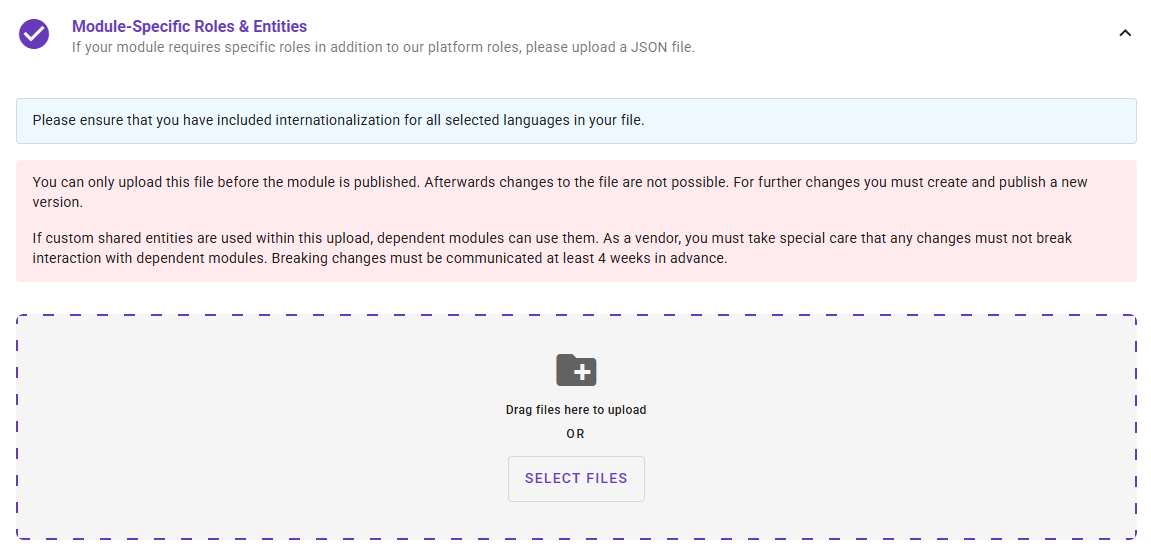
- Save your changes to trigger file validation
Step 3: Setting Environment Variables for Your Module
As outline above you have to tell HortiView how to fetch the entities from your backend. That's what the environmentKey property is for. All you have to do is define the key in your module settings and specify to which environment you want it to connect to:
- Navigate to "My Modules" and select the module you want to provide data to other consumers.
- Now, navigate to the tab "Dev Resources" and scroll to section "Environment Variables"
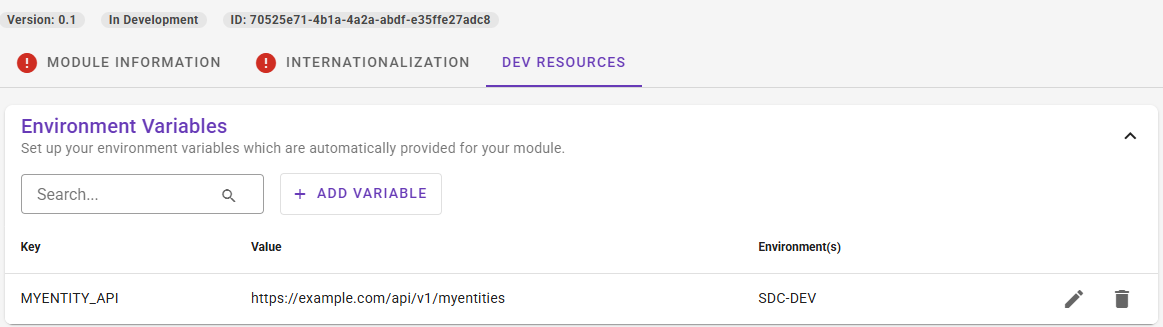
- Add a new variable. In our example key is
MYENTITY_APIand value would be the URL where the entities can be found. Select the environment you want it to point to: - During development select "DevBox". The value should point to your development environment.
- When you are ready for production, add another key that points to your production environment and select "Production" as the environment from the dropdown.